

Work Smarter, let Claude Do It.
Ultimate guide to turn Claude into your smart AI coworker
🔗 Some useful links to bookmark ⤵️
Want to reach out to with our editors? Click below to DM our staff 💬
Know a friend that would use this tutorial?
Refer 3 friends and get 1-month premium subscription
✍️ This week’s review:
How to Set Up Claude Cowork

TL;DR
This tutorial guides you on how to set up Claude Cowork in 8 simple steps — from downloading the desktop app to connecting your favorite tools like Slack and Google Drive — so Claude can manage tasks, read your files, and work alongside you like a real team member.
What You Can Do With This Tutorial?
Once you learn this, you can:
Stop copy-pasting information into Claude every single time
Let Claude read your files automatically before starting any task
Save hours of work by giving Claude a folder it can access anytime
Connect your tools like Google Drive, Notion, Slack, and more
Get Claude to ask YOU smart questions before it does anything — so nothing goes wrong
Use plugins to handle marketing, data, and legal tasks with one slash command

Download it here: https://gptcentral.tradepub.com/free/w_aice24/prgm.cgi?a=1
Summary of the Tutorial
Step 1 — Download the App
First things first — you need the Claude desktop app.
Go to claude.com/download
You need a Pro plan (costs $20/month)
Works on Mac and Windows only
Download and open the app — it only takes a few minutes

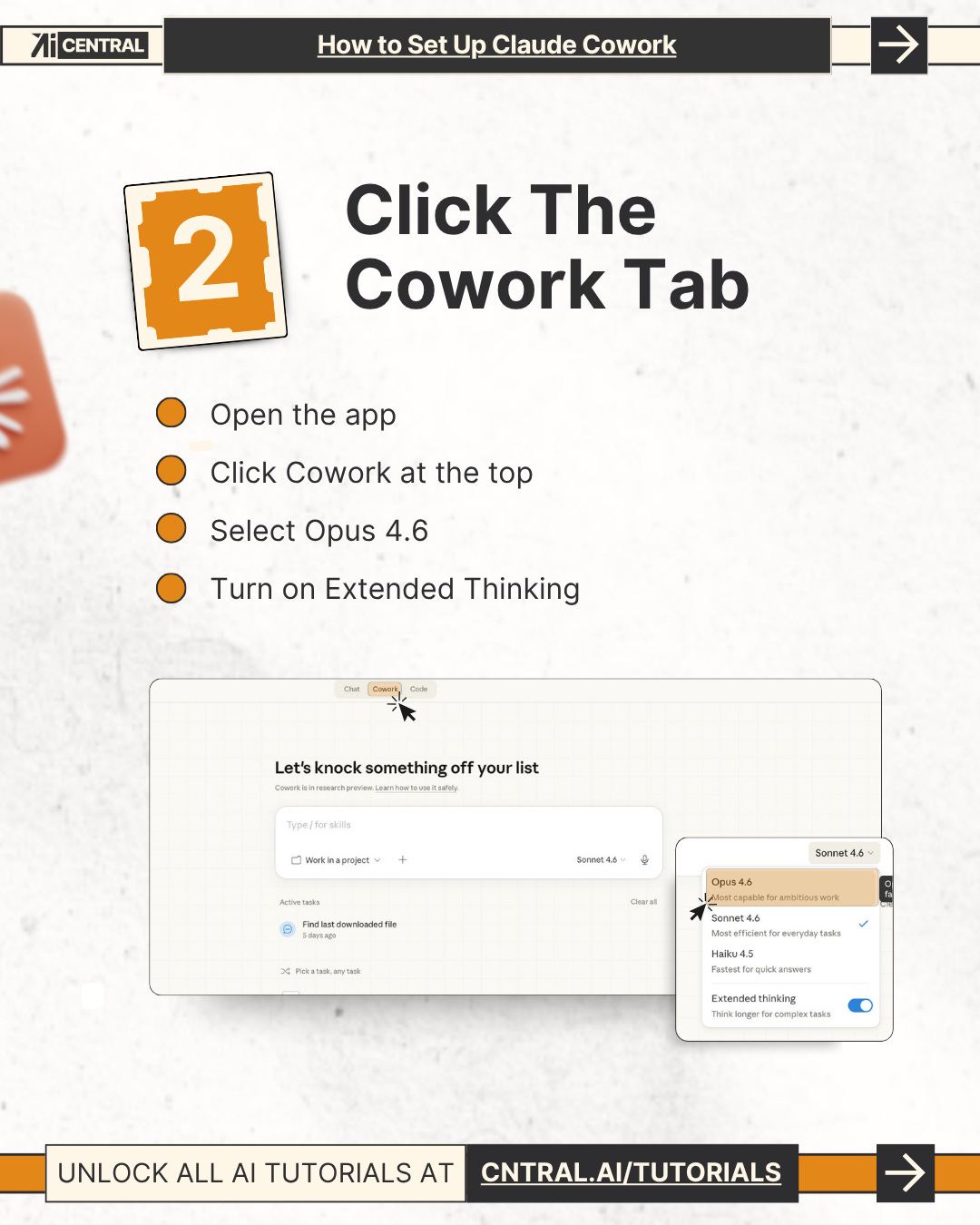
Step 2 — Click the Cowork Tab
Once the app is open:
Look at the top of the screen and click “Cowork”
Choose the model called Opus 4.6 (it’s the most powerful one)
Turn on Extended Thinking — this makes Claude think harder on tough tasks

Step 3 — Build Your Folder
This is the secret sauce. Create one main folder on your computer called:
“Claude-Work”
Inside it, make 4 smaller folders:
ABOUT ME — Put info about who you are and how you write
PROJECTS — One folder for each project you’re working on
TEMPLATES — Your best past work, saved as examples
OUTPUTS — Where Claude will save the finished work it creates
Claude has full read and write access to this folder — so keep it neat and focused.

Step 4 — Create 3 Context Files
Inside the ABOUT ME folder, create these 3 files:
about-me.md — What you do every day, your job, your goals
my-voice.md — Your writing style + 2 or 3 real examples of your writing
my-rules.md — Rules for Claude to follow, like:
Ask questions before starting
Always show a plan first
Never delete anything without permission
One good file is worth more than 50 random uploads. Keep it simple.

Step 5 — Set Your Instructions
Now tell Claude who you are — permanently.
Go to: Settings → Cowork → Edit Instructions
Paste this exact prompt (fill in your name and role):
“I’m [Name], [Role]. Read my files before every task. Ask questions before executing. Show a plan. Never delete without approval.”
You only set this once — and it runs every single time from that point on.

Step 6 — Stop Asking, Start Acting
For every task you give Claude, use this ready-made prompt:
“I want to [TASK]. Read all files first. Ask me questions using AskUserQuestion before you execute. If something is off, generate new questions. Do not guess.”
Here’s what happens next:
Claude reads your files
It generates clickable buttons with questions for you
You click your answers
Claude executes the task
You don’t need to be perfectly clear — Claude will force you to be.
Step 7 — Install Your First Plugin
Plugins give Claude superpowers for specific jobs.
Go to: Customize → Browse Plugins → Install
Type / in the chat to see all your slash commands
Some examples:
Marketing tasks →
/marketing:draft-contentData tasks →
/data/exploreLegal tasks → Just type “Review this NDA.”
Start with just 2 plugins — don’t overload yourself at the beginning.
Step 8 — Connect Your Tools
The final step is linking Claude to the apps you already use.
Go to: Settings → Connectors → Browse → Add
You can connect:
Slack
Google Drive
Notion
Figma
And 50+ more tools
Now Claude can pull information directly from your real work apps — no more copy-pasting anything.
Conclusion
Setting up Claude Cowork is like giving yourself a brilliant assistant who always reads the brief, never deletes your work, and asks smart questions before doing anything. The real power isn’t just the AI — it’s the system you build around it: the right folder structure, the right context files, and the right instructions. Once this is set up, you drop a task, answer a few clicks, and Claude handles the rest. Use this setup at work to move faster, stay organized, and finally stop doing the stuff that wastes your time.
About the Author
This tutorial was created by AI Central — a platform dedicated to making AI tools easy for everyone. They publish step-by-step guides, free ebooks, and prompt libraries at cntral.ai/tutorials. Their content is designed to take total beginners from zero to confident AI users — fast, without the confusing tech talk.
Download it here: https://gptcentral.tradepub.com/free/w_aice24/prgm.cgi?a=


Claude genuinely changes the way you work once you get the hang of it.